Home: overview and guides
Home · Guide
Create a discount code with the AI assistant
A discount for a launch or a weekend sale takes one sentence. The AI fills in code, value, products, customers and period as a card; you change what you want and confirm.
The steps in Merchavio
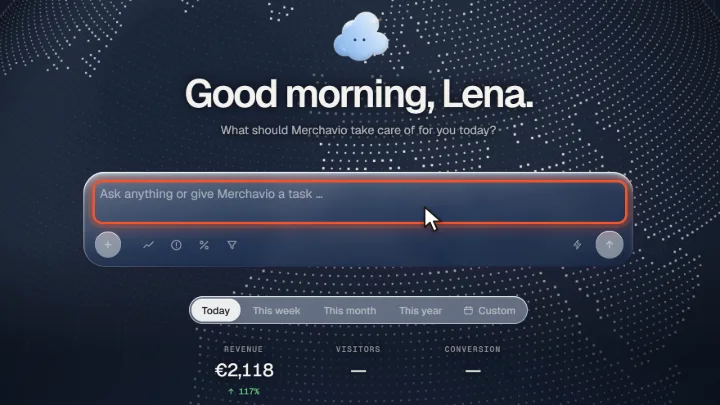
Screenshots from Merchavio with sample data. The coloured frame shows where to click.
Describe the discount
On Home, type for example "Create a 20% discount on all products for one week, once per customer".
Check the draft
The AI shows a Discount card with the code, the value (Percent or Fixed €), Applies to, Customers, Start and End. You can change every field directly in the card or tell the AI what to change.
Confirm
Click Create discount. The code is active from the start date and appears under Discounts.