Products: overview and guides
Create a digital product: course, ebook, community or software
A new digital product needs only a type and a name; everything else can follow. A new product starts as a draft, so you can prepare price, content and sales page in peace.
Which product type fits?
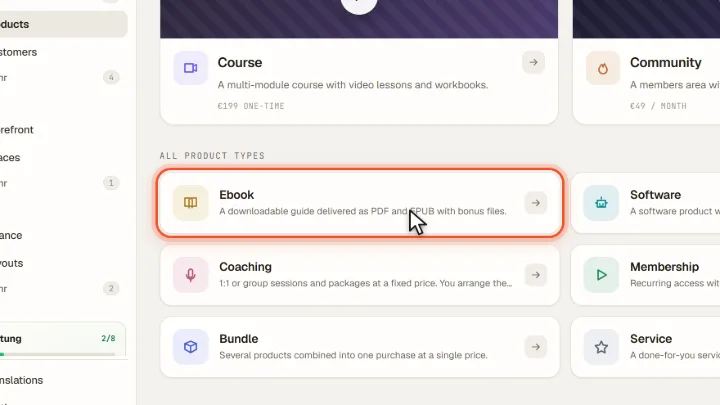
Choose by what buyers get: Ebook for a file to download, Course for lessons with video, Community or Membership for ongoing access, Coaching or Service for your time, Software for an app and Bundle for several products at one price.
The steps in Merchavio
Screenshots from Merchavio with sample data. The coloured frame shows where to click.
Start a new product
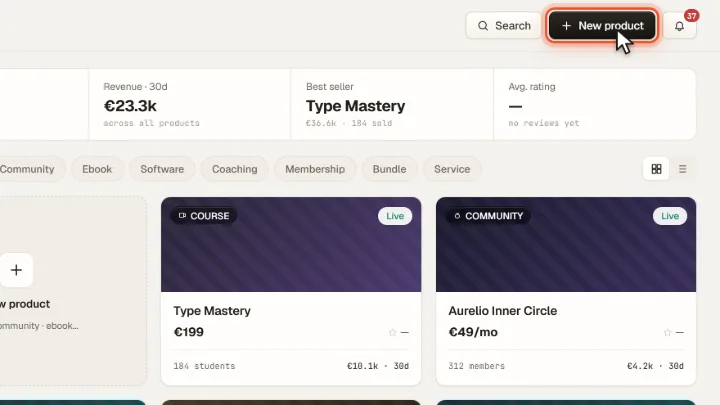
Open Products in the sidebar and click New product at the top right.
Choose the product type
Pick one of the eight types. Below that you can also duplicate an existing product. Here we choose Ebook.
Name and description
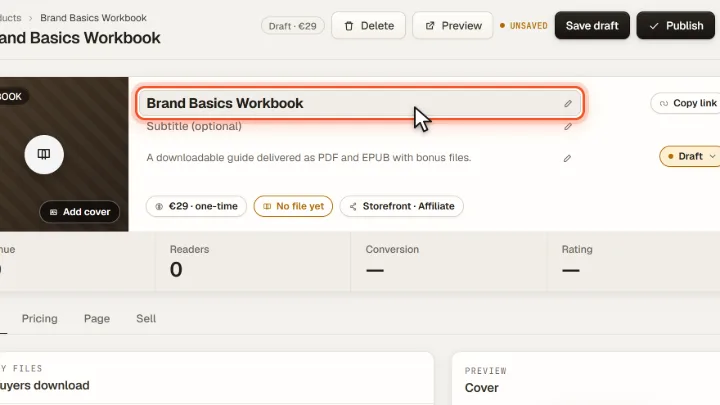
Click the title and name your product (up to 60 characters). Below it is the short description that buyers see on the sales page.
Save or publish
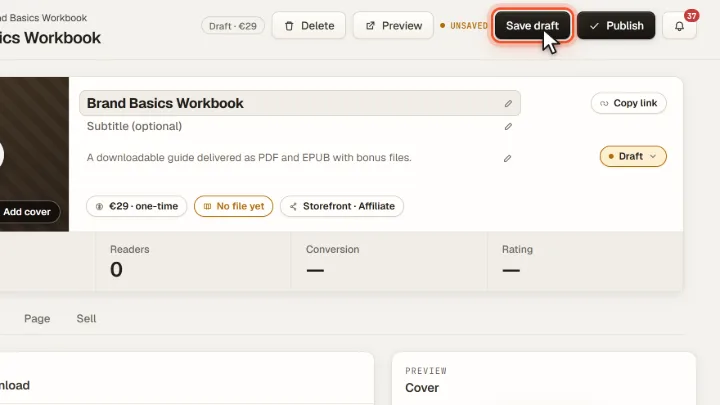
Save draft saves without publishing. Preview shows the sales page as buyers will see it, Publish puts the product live.
Tips from practice
- Start with the price and the sales page, the content can grow later. A draft costs nothing and is invisible.
- Duplicate instead of starting over when a new product is similar to an existing one, for example a second ebook.
Common mistakes
- Publishing without a payment method. Paid products need a connected Stripe account; connect it under Settings first.
- Choosing Ebook for ongoing access. For content that keeps growing, a Membership or Community fits better.
Frequently asked questions
Can I change the product type later?
Name, description, price and sales page can be changed at any time. For a different type, duplicate the product or create a new one.
Is a draft visible to visitors?
No. A draft has no public sales page and cannot be bought until you click Publish.
Related guides
Set prices and subscriptions for digital products
One-time, monthly, annual or free.
Read →Products · GuideSell an ebook as a download: deliver the file after purchase
Deliver a PDF, ZIP or video after purchase.
Read →Settings · GuideConnect Stripe and receive payments in your own account
Receive payments in your own account.
Read →