Products: overview and guides
Order bump: offer an add-on at checkout
An order bump is a small extra offer in the cart and order summary, for example a workbook to go with a course. In Merchavio there is exactly one order bump, and it applies store-wide to every purchase.
When an order bump makes sense
An order bump works when the add-on is cheap compared to the main product and fits almost every purchase: a template pack, a checklist, a bonus recording. Buyers decide with one click, without leaving the checkout.
The steps in Merchavio
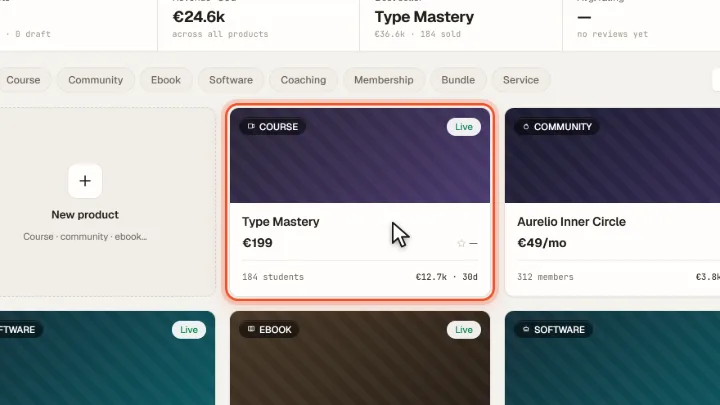
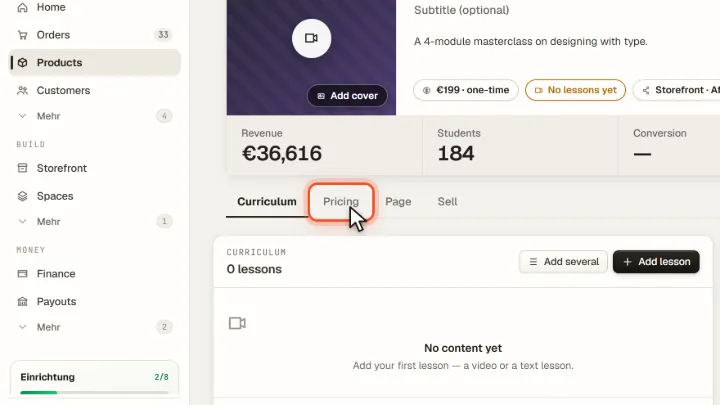
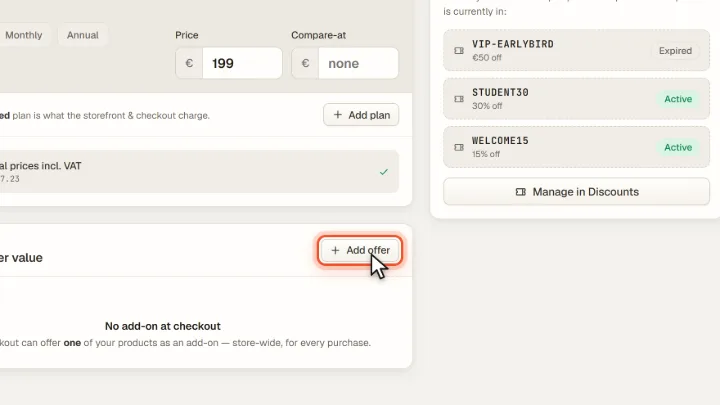
Screenshots from Merchavio with sample data. The coloured frame shows where to click.
Open a product
Open Products and click a product.
Open Pricing
Switch to the Pricing tab.
Choose the offer
Under Order bump click Add offer and choose the product buyers can add. The switch turns the bump on or off. The same setting is under Storefront → Checkout.
Tips from practice
- Keep the add-on well below the main price, so the decision is easy.
- Pick a product that fits all buyers. The bump appears with every purchase in your store.
Common mistakes
- Choosing a subscription. Only one-time products can be an order bump; subscriptions are bought on their own.
- Leaving the bump product as a draft. The checkout only shows the bump once the product is live.
Frequently asked questions
Can I set a different order bump per product?
No. There is exactly one order bump for the whole store. You can change it at any time.
Where do buyers see the order bump?
In the cart and in the order summary at checkout, as a one-click add-on.
Related guides
How to set up an automatic discount without a code
From a minimum amount, without a code.
Read →Storefront · GuideDesign the checkout for your digital products
Checkout in your look, with Stripe.
Read →Analytics · GuideTrack store revenue: orders, channels and top products per period
Revenue, orders and channels per period.
Read →