Bookkeeping: overview and guides
Organize receipts digitally: the receipt folder by month
Receipts are easiest to organize digitally when every month has a fixed place. In Merchavio's receipt folder every month has folders for income, expenses and your tax advisor. You upload a document once and find it again by supplier, category or file name.
What goes into the receipt folder
The receipt folder is for everything your tax advisor asks for each month: invoices from suppliers and tools, receipts, bank and PayPal statements, contracts. If you upload documents as they arrive, the month is complete at the end and you do not have to search through mailboxes.
The steps in Merchavio
Screenshots from Merchavio with sample data. The coloured frame shows where to click.
Open Bookkeeping
Open Bookkeeping (under More in the sidebar). The Receipts tab shows the year with one chip per month; months with documents are marked.
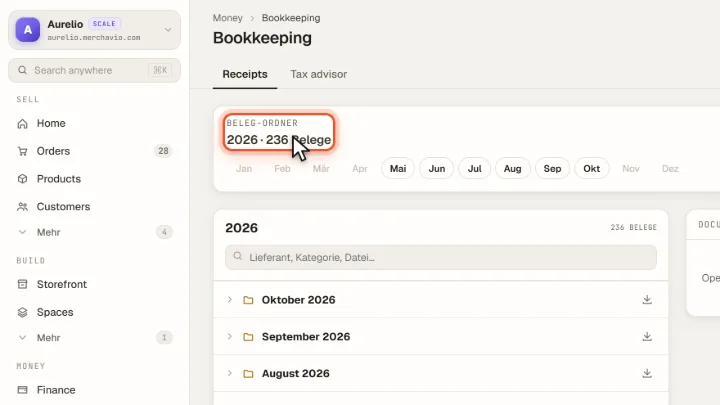
Open a month
Click a month in the list or its chip at the top. The month opens and shows its folders Income, Expenses and For the tax advisor, plus your own folders.
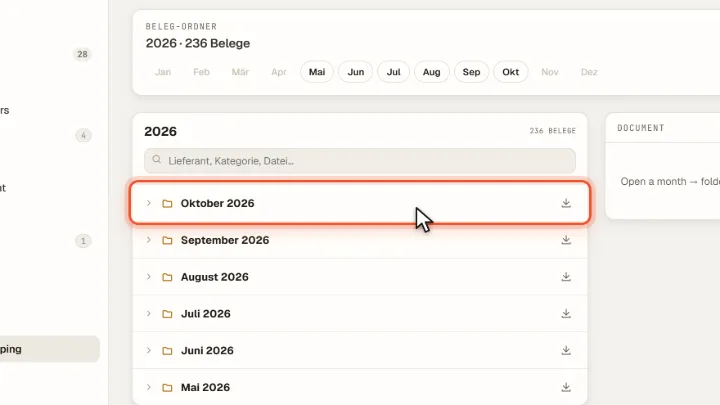
Upload a document
Open a folder and click Datei hier ablegen at its end. PDFs and images up to 25 MB are accepted. For Income and Expenses you then enter supplier, gross amount, VAT rate and category; for For the tax advisor only a name.
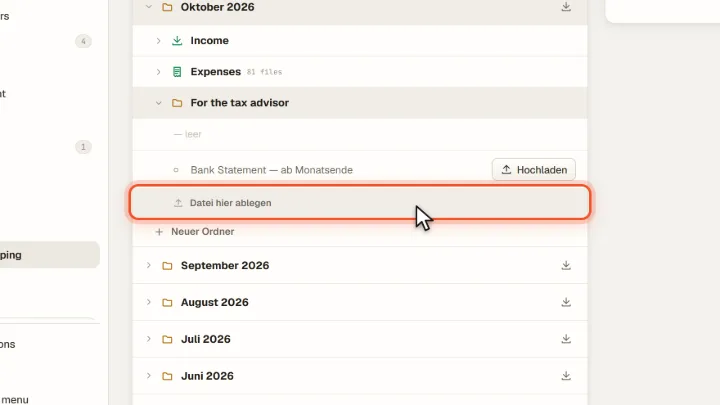
Find and correct a document
Click a document to see it on the right with all details, or use the search field. To correct a value, click Edit at the top right and then the value in the preview; Fertig ends the edit mode.
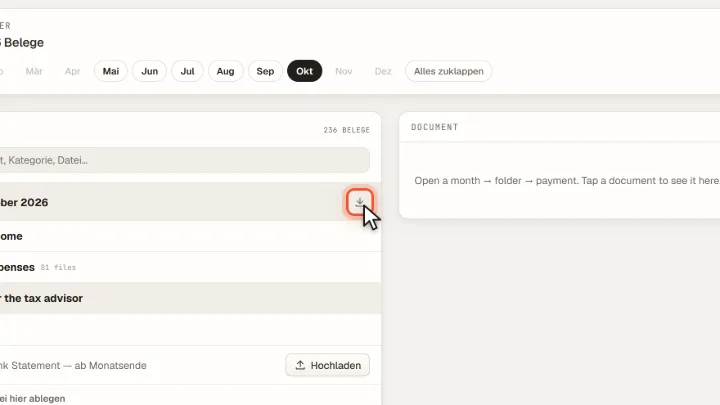
Download the month as a ZIP
The download icon in the month row loads the month as a ZIP file: all documents in their folders plus Übersicht.csv with date, supplier, category, amount, VAT and the totals for income, expenses and balance. The table opens directly in Excel.
Tips from practice
- Name bank statements clearly. If the file name or label contains "Kontoauszug" or "bank statement", Merchavio recognises the statement. Your tax advisor can only download a month once it is there.
- Use your own folders for recurring topics such as travel costs. In the ZIP the documents stay in these folders; whether they count as income or expense is in the CSV.
Common mistakes
- Entering the net amount. Merchavio asks for the gross amount including VAT; the VAT rate you choose determines the input VAT.
- Uploading the same invoice twice. A second copy (same supplier and amount within three days) is hidden in the list and only shows up in Edit mode, where you can delete it. Merchavio deletes nothing automatically.
Frequently asked questions
Which files can I upload as receipts?
PDFs and images (for example JPG or PNG) up to 25 MB per file. PDFs with several pages can be viewed page by page in the full-screen preview.
Why can my tax advisor not download a month yet?
A month opens for download from the 4th of the following month, when no document in it is still open and a bank statement is in the month. You can download every month yourself at any time.
Related guides
Give your accountant access: read-only, with their own login
Read-only access with their own login.
Read →Finance · GuidePlan your cash-basis profit statement (EÜR) per month
Plan income and expenses per month.
Read →Orders · GuideFind, filter and export orders
Filter, search and export your orders.
Read →