Settings: overview and guides
Settings · Guide
Create imprint, privacy policy, terms and withdrawal policy
The template generator creates imprint, privacy policy, terms and withdrawal policy (with the statutory model withdrawal form) in one step, matched to how Merchavio works. Your details are also saved as your business details.
The steps in Merchavio
Screenshots from Merchavio with sample data. The coloured frame shows where to click.
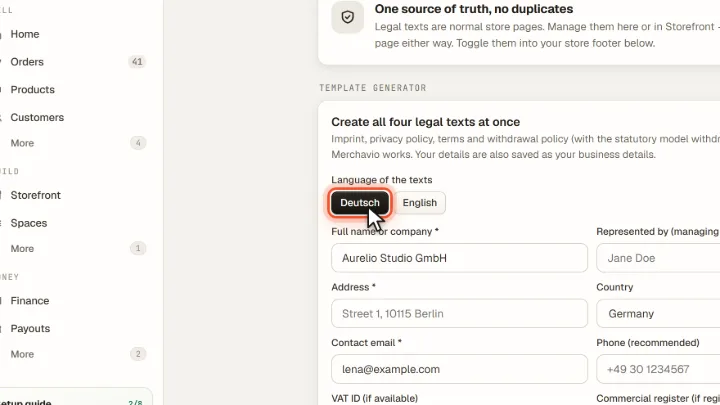
Open Legal pages
Open Settings and then Legal pages. Choose the language of the texts: Deutsch or English.
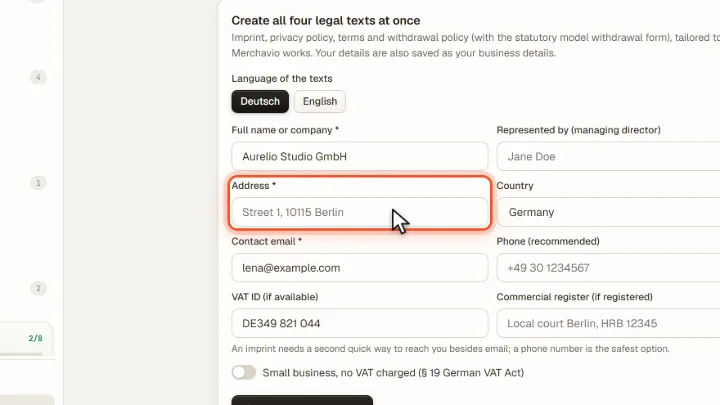
Enter your details
Enter name or company, address, country and contact email, plus phone, VAT ID and commercial register if available.
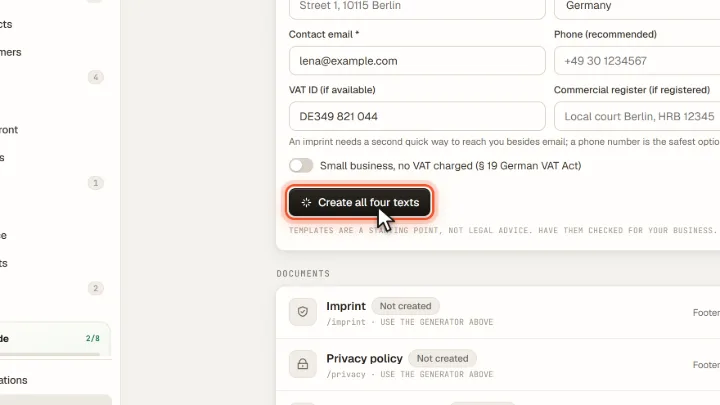
Create the texts
Create all four texts creates the pages. They are normal store pages: you edit them here or under Storefront → Pages and switch them into your footer.