Storefront: overview and guides
Set up the member area for your buyers
The member area builds itself from what a buyer owns: every purchased course, every community and every download appears automatically. You style the frame and the sign-in page.
The steps in Merchavio
Screenshots from Merchavio with sample data. The coloured frame shows where to click.
Open Members
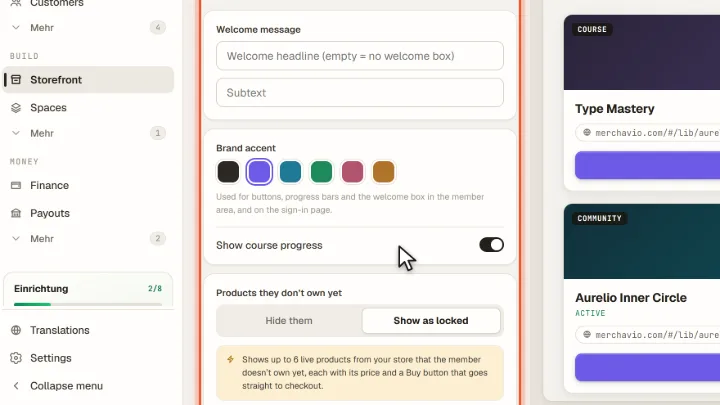
Open Storefront and click the Members tab. Under You control you set the welcome message and the brand accent, which colours buttons and progress bars in the member area.
Progress and other products
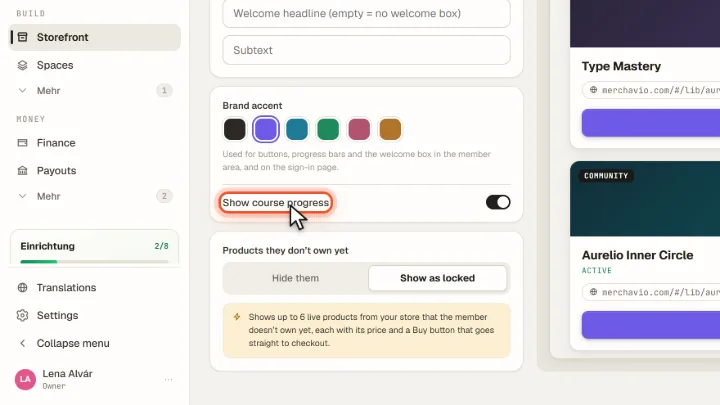
Switch Show course progress on or off. Under Products they don't own yet you hide other products or show up to six of them as locked (on by default), each with its price and a Buy button that goes straight to checkout.
Sign-in page
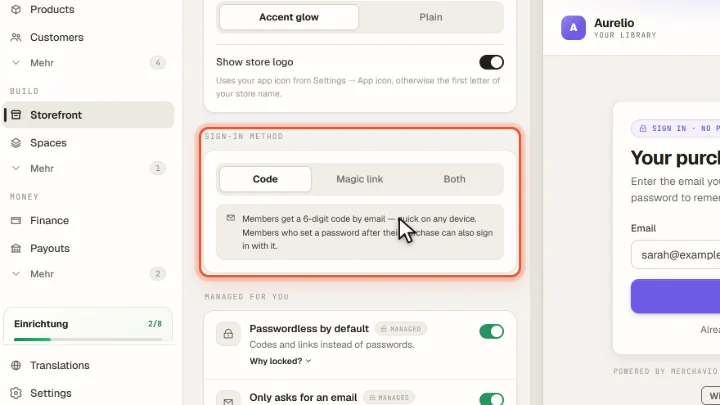
In the Sign-in tab you set the headline, text, background and logo of the sign-in page. Under Sign-in method buyers get a 6-digit code, a sign-in link or both by email.
Save
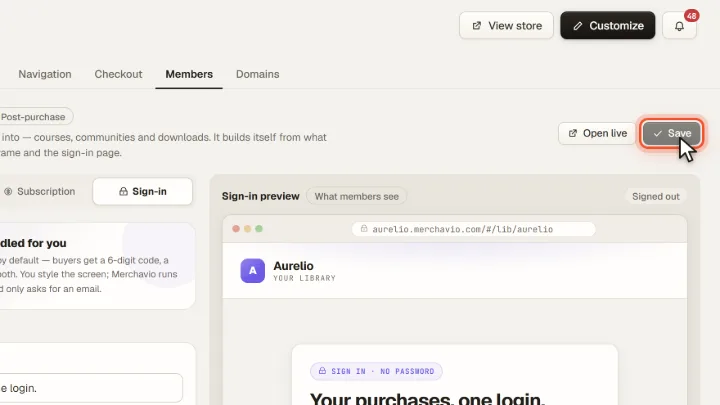
The preview on the right shows the real member area with sample data. Save applies the settings for your buyers, Open live opens your member area.