Storefront: overview and guides
Design your store with the page builder
The page builder shows your store exactly as visitors see it. You click a section, change it on the right and see the result immediately.
The steps in Merchavio
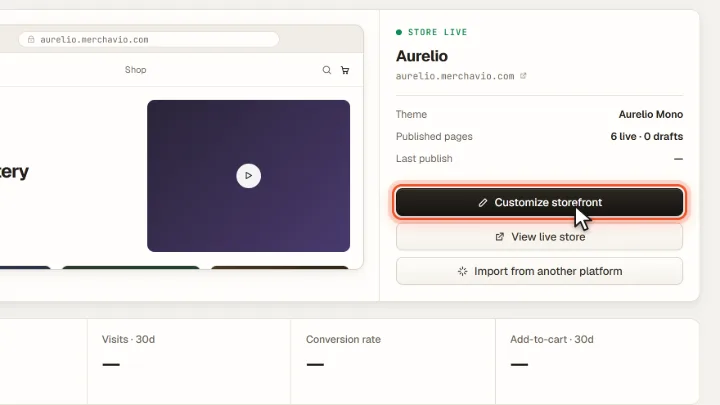
Screenshots from Merchavio with sample data. The coloured frame shows where to click.
Open the builder
Open Storefront in the sidebar and click Customize storefront.
Edit sections
Click a section in the preview, for example the header or a product block, and change texts, images and buttons in the panel. You add new sections, move them or hide them.
Save and publish
Changes are saved as a draft. Check desktop and mobile, then publish: only then do visitors see the new version.
Frequently asked questions
Are there ready-made sections?
Yes. Under Section the tab Ready-made blocks shows designed sections such as an intro, benefits, a process, about you, questions and a closing call. They take on your colours and fonts and land above the footer. Replace the example texts with your own, or tick Let the AI adapt the texts to my store if the AI is active in your account. Before publishing, Merchavio points out sections that still show example texts.