Storefront: overview and guides
Storefront · Guide
Set up the menu and footer of your store
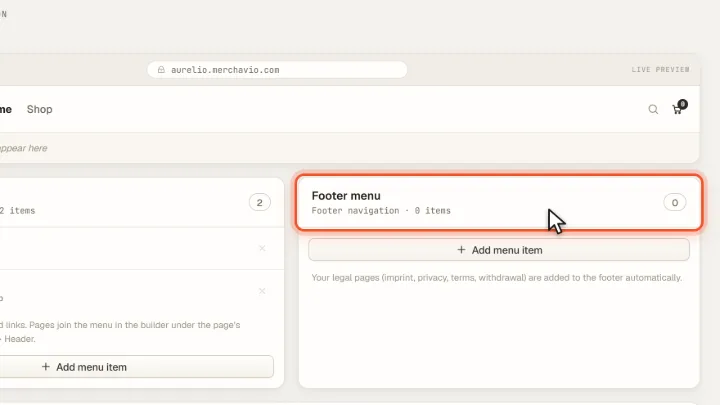
The menu helps visitors find your products. The footer holds your legal pages. Both are set up under Navigation with a live preview.
The steps in Merchavio
Screenshots from Merchavio with sample data. The coloured frame shows where to click.
Add a menu item
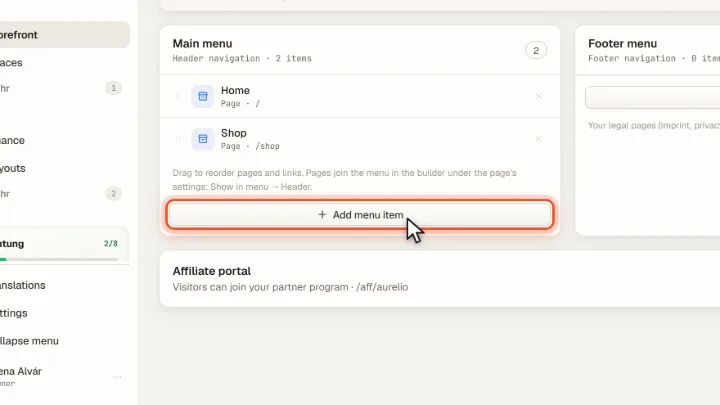
Open Storefront, then Navigation, and click Add menu item under Main menu.
Choose the target
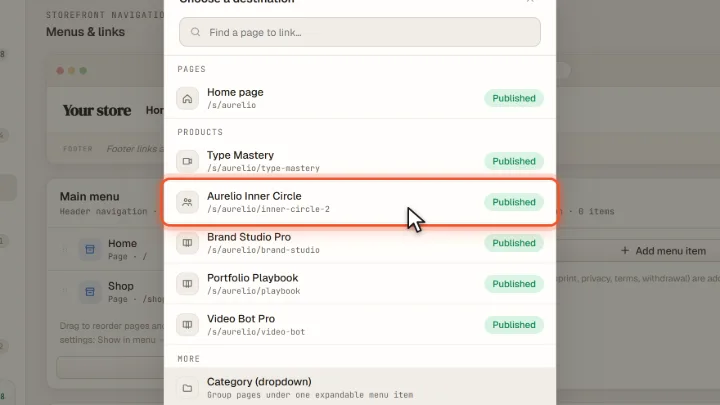
Choose a product, a page or a link. The live preview at the top shows the menu straight away. A product appears in the menu of your live store as soon as it is live. Drag the grip on the left to put pages like Home or FAQ and your own links in any order.
Footer
Under Footer menu are terms, privacy and refunds. With Add to menu at Affiliate portal visitors can join your affiliate program from the store.